A good Gemini AI photo prompt names the photo you uploaded, the one change you want, and everything that must stay the same. Below are 24 copy-paste prompts for headshots, couples, family groups, retro looks, festivals and birthdays: upload your photo to Gemini, paste the prompt, and compare the face with the original before you share it. We wrote these prompts for this guide and ran all 24 in ChatCut with Nano Banana 2.1 on AI-generated stand-in photos. The faces stayed recognizable in every run, but details the prompt didn’t name, like a shirt color or a hat, sometimes changed, so treat “keep the same face” as a request to check, not a promise.
Choose a Gemini AI photo prompt
Pick by the photo you have, then change the setting, colors or crop inside the prompt. The photo counts are what each example uses, not upload limits.
| Look | Photo to attach | Entries |
|---|---|---|
| Portrait or headshot | One portrait | 1–4 |
| Couple | One couple photo or two portraits | 5–8 |
| Family | One group photo | 9–12 |
| Retro or vintage | One portrait or group | 13–16 |
| Festival | One portrait or couple | 17–20 |
| Birthday | One portrait or couple | 21–23 |
| Fix a changed face | Original and edited image | 24 |
Upload your photo in Gemini
Google’s help center covers editing images with Nano Banana 2 and uploading files on the web:
- Open Gemini and sign in. Uploading files requires a signed-in account.
- Paste the prompt into the text box.
- Choose Add files → Upload Files and select your photo or photos.
- Check the attachment order. Entry 6 uses image 1 for the person on the left and image 2 for the person on the right; entry 24 uses the original first and the edited result second.
- Choose Submit, then compare the result with your original.
Start from a sharp, well-lit photo where the features you want kept are visible. For two-photo prompts, check Google’s guide to confirm your current model accepts both images. Only edit photos of people who have agreed to it. Google says image editing isn’t available to users under 18, and every example here uses adults.
Prefer to skip the Gemini upload? Each prompt’s Open in ChatCut button starts a ChatCut project with that prompt on Nano Banana, the same Google image model family; attach your photo when the Agent asks. ChatCut image generation needs a Pro plan, and a 1K edit on Nano Banana 2.1 costs about 0.2 credits.
How to write a photo edit prompt
Google DeepMind’s prompt guide builds a prompt from style, subject, setting, action and composition, and recommends clear reference images. For an edit of a real photo, add one more part: a list of what must not change, such as each person’s face, expression, age, skin tone, position and accessories.
Every prompt below follows that pattern. A background-only edit names the clothing and pose it keeps; a couple prompt describes each person separately. After each result, check the things the prompt asked to keep.
Portraits and professional headshots
If your clothes and lighting already work, try the background-only edit (entry 4) before a full restyle.
1. Window-light profile picture
Use for: a relaxed profile picture on a plain background.
Attach: one clear portrait.
Customize: wall color and light direction.
Check: compare the eyes, jawline, hairline and glasses with your original.
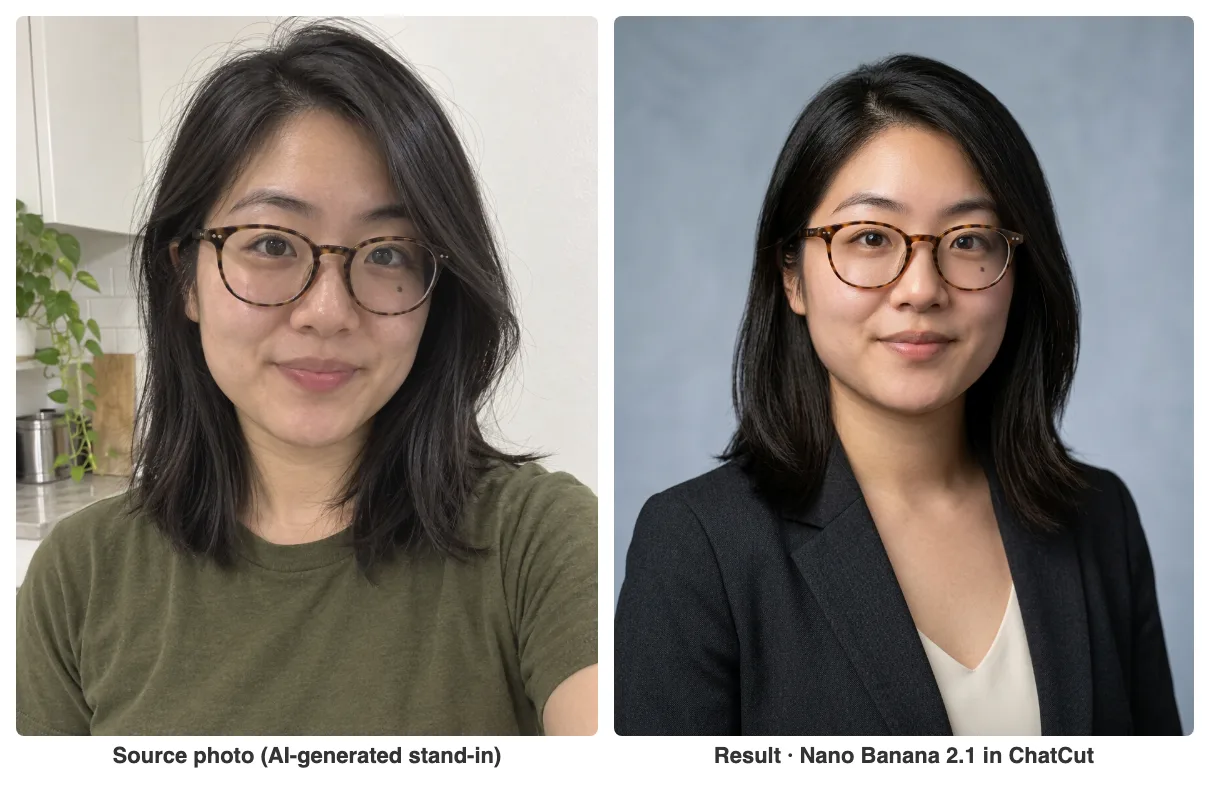
2. Professional headshot
Use for: a LinkedIn or work profile photo that keeps your glasses.
Attach: one portrait, with glasses visible if you wear them.
Customize: jacket and backdrop colors.
Check: look at the shape of the glasses, the ears, the collar edges and whether the face still matches.
3. Outdoor editorial portrait
Use for: a magazine-style outdoor portrait for anyone.
Attach: one clear portrait.
Customize: overshirt color and wall texture.
Check: compare face and body proportions, then check shadow direction and the fabric around the hands.
4. Change the background only
Use for: a new setting while keeping your outfit and pose.
Attach: one portrait with a simple pose.
Customize: the room and how blurred it is.
Check: look at hair edges and shoulder outlines for halos or changes to the person.
Couple photo editing prompts
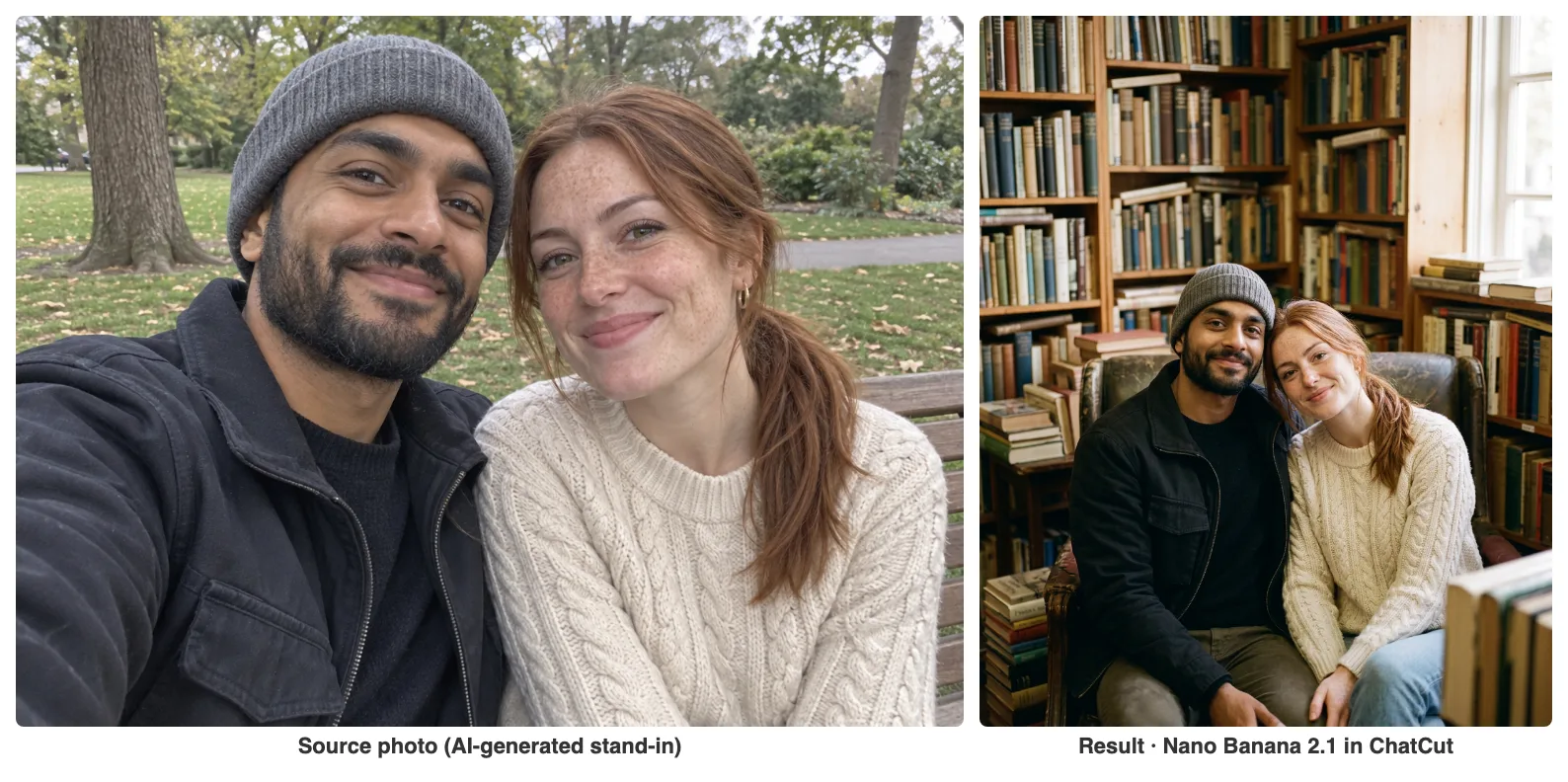
Entries 5, 7 and 8 start from one photo of you both. Entry 6 combines two separate portraits, so check each face on its own.
5. Bookshop couple
Use for: a cozy bookshop setting for an existing couple photo.
Attach: one photo of both of you.
Customize: the shop and the crop.
Check: make sure neither face has borrowed features from the other person.
6. Couple from two separate photos
Use for: a couple portrait when you don’t have a photo together.
Attach: two portraits, one person each, in the order the prompt uses.
Customize: the setting and bench color.
Check: confirm who is on which side, that their sizes look natural together, and that each has their own hands. Reject a face that blends the two.
7. Rainy café window
Use for: a moody café scene with the rain kept behind you.
Attach: one photo of both of you.
Customize: how heavy the rain is and how warm the lamp is.
Check: look for duplicated faces reflected in the glass and rain drawn over skin.
8. Anniversary portrait in a gallery
Use for: a dressed-up anniversary photo.
Attach: one photo of both of you.
Customize: outfit colors and flowers.
Check: look at where new clothing meets skin, and for rings or jewelry the model added on its own.
Photo prompts for family portraits
Start from a photo where everyone is already together, and keep their arrangement in the prompt so you can check each person afterwards.
9. Three-generation garden portrait
Use for: grandparents, parents and grown children in one garden photo.
Attach: one photo of the three adults together.
Customize: the garden and the crop.
Check: count three people and compare each face separately. Reject a missing or swapped face.
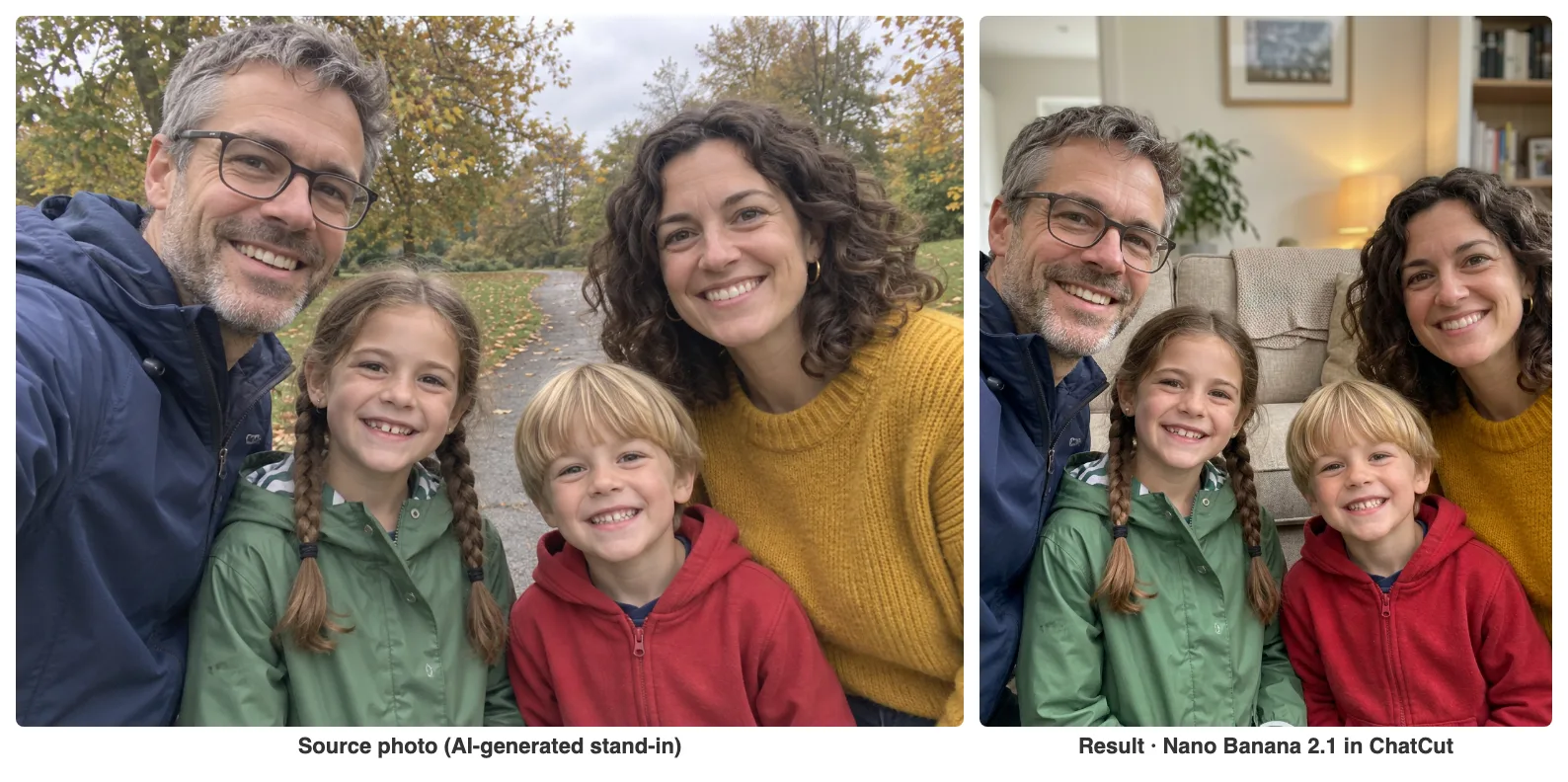
10. Living-room family photo
Use for: a warm indoor setting for a family group.
Attach: one family group photo.
Customize: room colors and furniture.
Check: check every face and skin tone, and that each arm belongs to the right person.
11. Siblings in a studio
Use for: a clean studio look for grown-up siblings.
Attach: one photo of the siblings together.
Customize: backdrop color and light direction.
Check: look for siblings’ faces drifting toward each other, and changes in height or age.
12. Family and pet on the porch
Use for: a family photo that already includes your pet.
Attach: one photo of the family with the pet.
Customize: porch and garden details.
Check: compare the pet’s markings, look at fingers near fur, and count the people.
Retro and vintage photo edits
These prompts change the photographic look: grain, flash, faded color or black and white. The decade names describe a style, not a claim about when the photo was taken.
13. 1970s studio couple
Use for: a retro couple portrait for the “Gemini AI retro couple photo” trend.
Attach: one photo of both of you.
Customize: clothing colors and backdrop.
Check: make sure the color grading hasn’t changed skin tone or softened defining features.
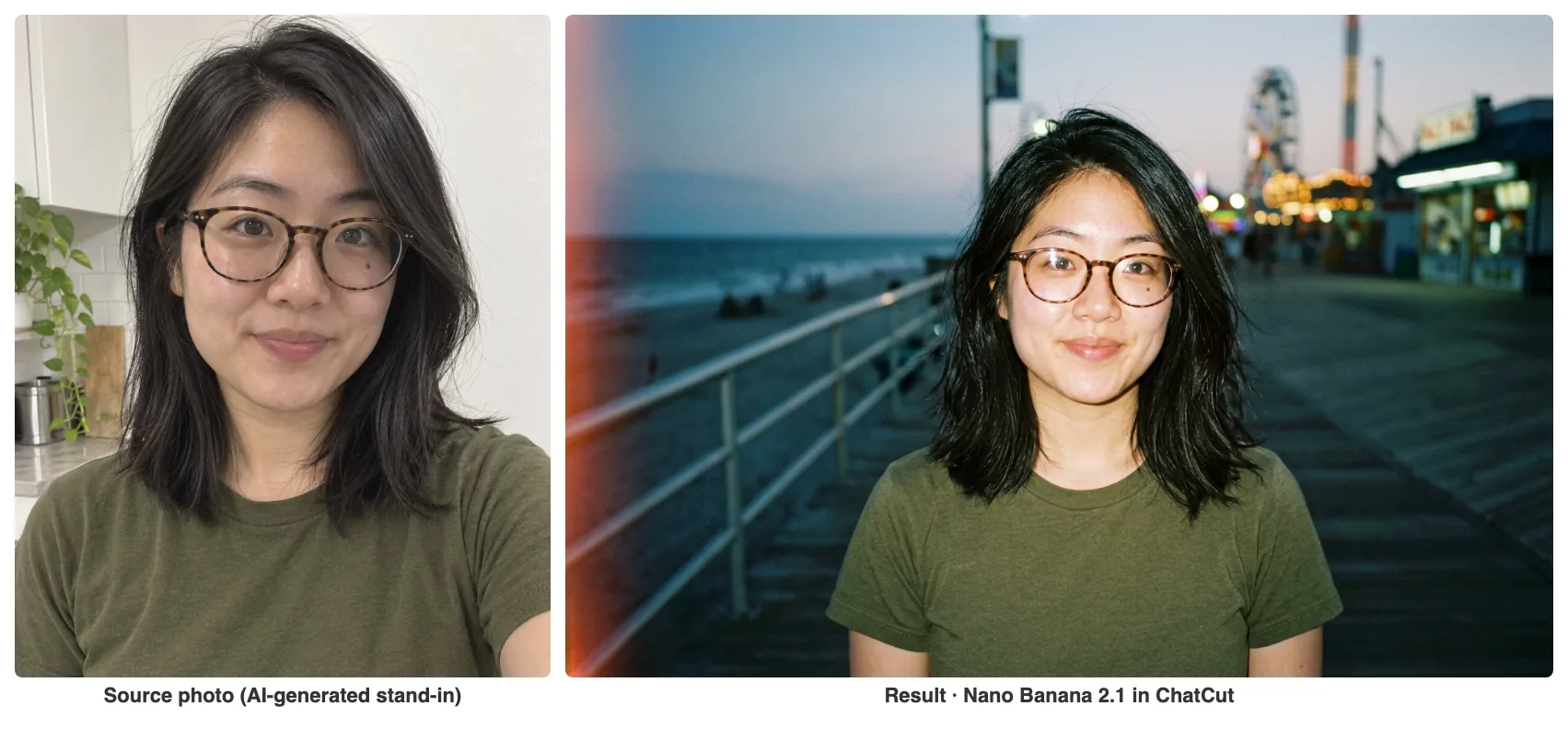
14. 1990s disposable-camera snapshot
Use for: a flash-lit snapshot look for one person.
Attach: one clear portrait.
Customize: the location and how strong the grain is.
Check: make sure the light leak doesn’t cross the eyes and the grain hasn’t blurred the face.
15. Black-and-white family album print
Use for: a timeless version of an existing family photo.
Attach: one family group photo.
Customize: border width and contrast.
Check: compare every face and make sure dark clothing hasn’t turned into flat black.
16. Vintage film-poster saree portrait
Use for: a saree portrait with an old studio publicity-photo look.
Attach: one clear portrait.
Customize: saree color and backdrop.
Check: look at the draping, the face, and any cultural details the model invented.
Festival photo prompts
These edits invent a festival scene, so show the person the result before you share it and don’t present it as a photo from the day itself.
17. Diwali doorway portrait
Use for: a Diwali look with diyas and marigolds.
Attach: one clear portrait.
Customize: outfit color and decorations.
Check: review the cultural details, where the flames sit, the hands and the face.
18. Holi colors in the background
Use for: a Holi look that keeps color off your face.
Attach: one clear portrait.
Customize: powder colors and the courtyard.
Check: make sure the powder stays behind the face and hasn’t changed the skin color.
19. Eid courtyard couple
Use for: a festive Eid portrait for a couple.
Attach: one photo of both of you.
Customize: outfit colors and the archway.
Check: check each face and pair of hands separately, and have the couple approve the outfits.
20. Christmas mantel family portrait
Use for: Christmas decorations behind an existing family photo.
Attach: one family group photo.
Customize: garland and light color.
Check: count the faces and make sure the string lights haven’t tinted eyes or skin. For more holiday ideas, see our AI Christmas photo prompts.
Birthday photo editing prompts
Ask for the cake and decorations to stay out of people’s hands, and add names or ages afterwards in an editor if the lettering has to be right.
21. Birthday café portrait
Use for: a birthday photo in a café without touching your hands.
Attach: one clear portrait.
Customize: balloon color and cake style.
Check: check the hands, the cake’s shape, and that no age number appeared.
22. Garden birthday for two
Use for: a quiet birthday scene for a couple.
Attach: one photo of both of you.
Customize: decoration colors and garden details.
Check: count two people, compare each face, and check where the table sits.
23. Minimal studio birthday with space for a caption
Use for: a clean birthday image you’ll add text to later.
Attach: one clear portrait.
Customize: balloon tint and which side the caption goes.
Check: make sure the empty space is big enough and no balloon string crosses the face.
24. Fix a face that changed
Use for: bringing a face back after an edit changed it.
Attach: your original photo as image 1 and the edited result as image 2.
Customize: name the feature that changed most, and the parts of image 2 you want to keep.
Check: compare the face with image 1 again. If it still doesn’t look like the person, start over from the original.
Check faces before you share
Open the original and the result side by side and go through this list:
- Who and how many. The same people, with the same eye spacing, nose, jawline, hairline, age and skin tone. In a group, compare one face at a time.
- Hands and edges. Fingers, glasses, ears, hair, pet markings, and where clothing meets skin.
- Scene and crop. Light coming from one direction, no extra faces in reflections, no cut-off heads, and room for any caption.
- Things you didn’t ask for. New rings, accessories, lettering, age numbers or festival symbols.
If only the setting is wrong, ask to change only the setting. If a face is wrong, use entry 24 and compare again. Keep the original and drop a result that still doesn’t look like the person, however good the lighting is.
If Gemini says “Sorry, I can’t edit images for you yet”
Gemini shows this when it won’t edit the photo you uploaded, and it usually offers to generate a new image instead. Google doesn’t publish one cause for the message, but its image help page lists limits that lead to it:
- Age and account. Editing uploaded images isn’t available to users under 18, and you need to be signed in to Gemini.
- Country and language. Image editing is only offered in the countries and languages the Gemini app supports for it.
- The request itself. A prompt or photo that runs into Google’s policies can get this generic reply instead of a specific reason.
What to try, in order:
- Check that you’re signed in to a personal Google Account with an adult date of birth.
- Start a new chat, attach the photo first, then send a short prompt that asks for one change (entry 4, the background-only edit, is a good test).
- Try a different photo. A sharp photo of consenting adults, with no other faces in the background, gives the edit the fewest reasons to stop.
- If Gemini still declines, run the same prompt somewhere else. The next section shows how to do that in ChatCut with Nano Banana.
Use the same prompts in ChatCut
ChatCut’s image models include Nano Banana, GPT Image 2.5 Flare and GPT Image 2.5 Sunburst (product facts), so you can paste the prompts above there as written. We haven’t compared outputs across the two products, so check each result on its own.
- In your ChatCut project, attach the same photo or photos with +.
- Paste the prompt. Keep the image order and the crop explicit.
- If a generation confirmation appears, review the request and any credit estimate, then select Allow.
- Find the new image in My Assets and compare it with your original. Results are new assets and don’t overwrite your photo.
- Drag the image from My Assets to a video track. The image generation guide covers each step.
ChatCut’s image models need an active Pro plan and use credits. Uploads, manual editing, transcription and export don’t use credits (generation credits). From Codex, ChatCut uses Codex’s built-in image tool by default when it’s available, and that generation follows your ChatGPT/Codex allowance; if you pick a ChatCut model or the workflow falls back to one, it needs Pro and uses ChatCut credits.
Already have a Gemini result you like? Upload it instead of generating again, then see how to add an image to a video, or image-to-video prompts to animate it. For product shots, thumbnails and storyboards, use our Nano Banana prompt library.
How we wrote these prompts
ChatCut publishes this guide. We chose personal-photo edits with a clear input, one specific change, details to customize and a visible check, from portraits and couples to festivals and birthdays. The upload steps and prompting advice were checked against Google’s documentation on November 12, 2026. On November 12, 2026, we ran four of them (entries 2, 5, 10 and 14) in ChatCut with Nano Banana 2.1, one of Google’s Gemini image models, on AI-generated stand-in photos; the results and what drifted are shown under each entry. On November 21, 2026, we ran the other 20 the same way, once each at 1K. We reused the same portrait, couple and family of four, and added stand-ins of three adults, three adult siblings and a family with a dog. For the two-photo couple (entry 6) we used two separate portraits. For the face fix (entry 24) we first gave the entry 17 result a heavy beauty filter, then asked for the original face back. The faces stayed recognizable in all 20, and entry 24 brought back the face shape, natural skin texture and the small mole under the eye. Some details changed without being asked:
- The Holi edit (entry 18) turned the olive T-shirt white, because the prompt only says “the cotton shirt”.
- The Eid edit (entry 19) dropped the man’s beanie and drew hair underneath.
- The Christmas edit (entry 20) added a tree beside the mantel.
- The reading-room background (entry 4) came back only lightly blurred.
If a detail matters, such as a shirt color or a hat, name it in the prompt. Results in the Gemini app itself can differ, and one run per prompt doesn’t show how often a prompt fails, so check every result before you share it.